How to Share One Office Printer With an Entire Team
One printer, ten people, and a print queue that never seems to behave — sound familiar? Here's how to set up a shared office printer properly the first time.
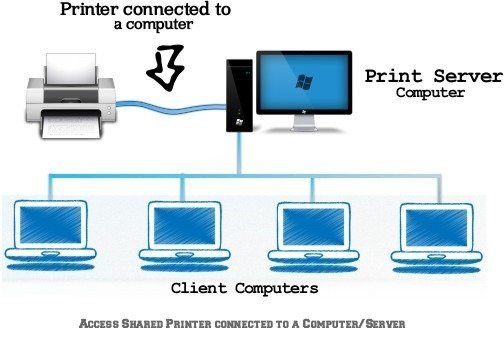
Sharing one printer across a team sounds simple until three people print at once and two of the jobs vanish into the void. Most of the time, the issue isn't the printer itself — it's how it was originally connected to the network.
Put the Printer on the Network, Not One Computer
The single biggest mistake in office printer setups is connecting the printer to one person's computer and then "sharing" it from there. If that computer is off, asleep, or just logged out, nobody else can print. A printer connected directly to the office network — with its own IP address — stays available to everyone regardless of what any individual computer is doing.
Give It a Fixed Address on the Network
Networks sometimes reassign addresses automatically, which is exactly what causes a printer that "worked fine last week" to mysteriously stop responding. Giving the printer a fixed, unchanging address on your office network is one of the most effective ways to stop this from happening.
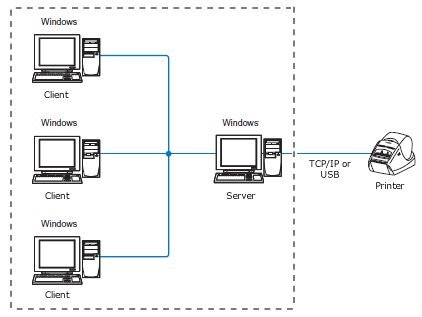
Set Up Each Workstation the Same Way
Once the printer has a stable network address, add it to each workstation individually using that same address, rather than letting some computers discover it automatically and others copy a shortcut from a coworker. Consistent setup across every machine makes troubleshooting far easier down the line, since every workstation is configured the same way.

Watch for Print Queue Jams
When multiple people send jobs to the same printer at once, one stuck job can back up everyone behind it. Clearing a jammed print queue and resending the job usually resolves this in seconds, and it's worth knowing where that queue lives on your system before it happens during a busy morning.
Setting up a shared printer for your team? Our Office Printer Setup guide covers the full configuration, from network setup to managing multiple workstations.
Related reading:
This is general guidance only. Summit Edge is not affiliated with, endorsed by, or an authorized support provider for any printer manufacturer.