How to Connect a Printer to a New Laptop or Phone
New computer, new phone, same old printer sitting in the corner. Here's the easiest way to get them talking to each other without digging through a manual.
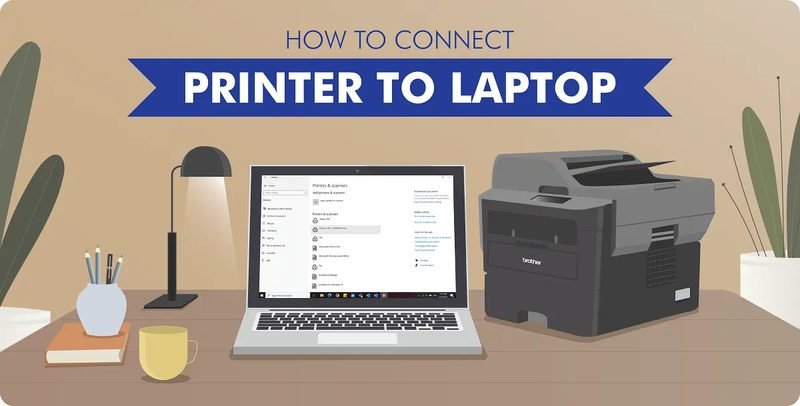
Whenever you get a new laptop or phone, the printer that was already set up on your old device usually needs to be connected all over again. It sounds like a hassle, but in practice it's a short process, and it's basically the same handful of steps no matter what printer you own.
Start With What Kind of Connection You Have
Before anything else, figure out how the printer physically connects — over wifi, over a wired network, or with a plain USB cable. This one detail decides everything else about how you connect it, so it's worth checking first rather than guessing.
Connecting Over WiFi
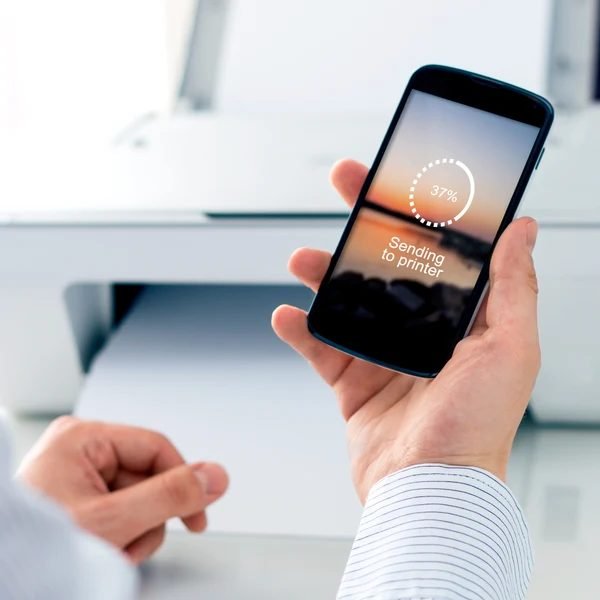
On a laptop or desktop, open your operating system's printer settings and look for an option to add a new printer — most modern systems will scan and list any wireless printer sitting on the same network automatically. On a phone, make sure it's joined to the same wifi network as the printer first; most phones and printers handle the rest automatically once they're on the same network.
Connecting With a USB Cable
This is usually the most reliable option and the simplest to troubleshoot if something goes wrong. Plug the cable in, and your device should recognize the printer and install what it needs within a minute or two. If it doesn't prompt you automatically, opening your printer settings and adding it manually almost always does the trick.
If the New Device Doesn't Find the Printer
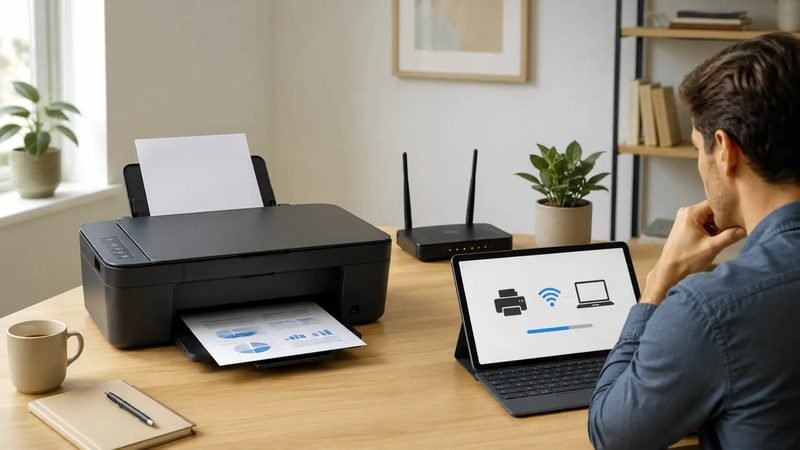
The most common reason a new laptop or phone can't find an existing printer is that they're simply not on the same network — a new device sometimes defaults to a different wifi band or a different saved network than the printer is using. Double-checking that both are on the exact same network solves this more often than any other fix.
Setting up at home or in an office? See our Home Printer Setup guide or Office Printer Setup guide for the fuller walkthrough, including multi-device setups.
Related reading:
This is general guidance only. Summit Edge is not affiliated with, endorsed by, or an authorized support provider for any printer manufacturer.