5 Home Printer Setup Mistakes That Cause Connection Problems
Most home printer problems trace back to one of a handful of small, easy-to-miss setup mistakes. Here they are, in plain English, so you can avoid the trial-and-error.
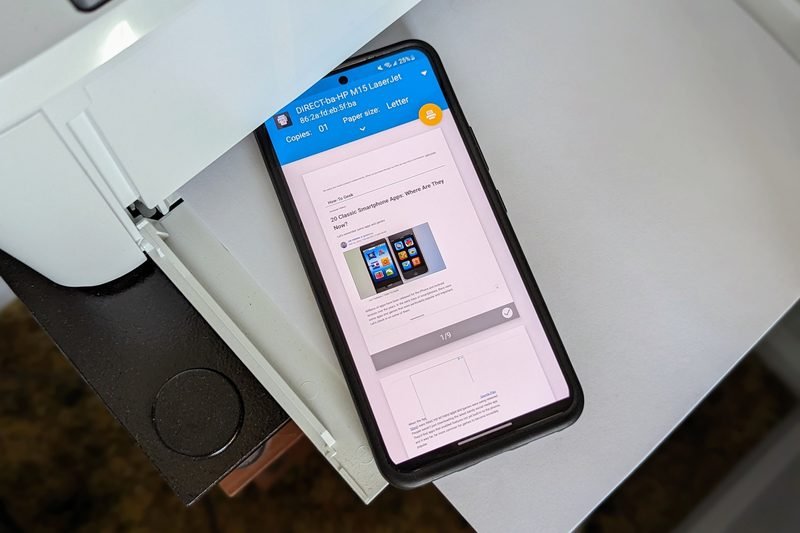
A home printer usually has to work for more than one person and more than one device, which is exactly why small setup mistakes cause outsized headaches. Here are the five we see most often.
1. Connecting to the Wrong WiFi Network
If your home has more than one wifi network name — say, a separate one from a mesh router extender, or separate 2.4GHz and 5GHz networks — it's easy for the printer to end up on a different one than your laptop or phone. They both look like "home wifi" to you, but to the printer, they're completely separate networks.
2. Skipping the Manufacturer's Setup App
Plenty of printers can technically be added through your computer's built-in printer settings, but skipping the manufacturer's own setup app (if one exists) often means missing a firmware update or a configuration step that makes the connection far more stable long-term.
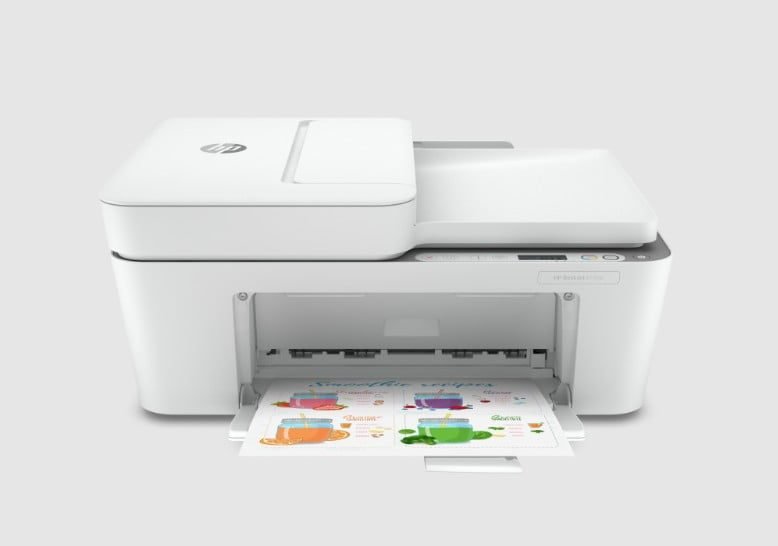
3. Not Naming the Printer Clearly
When two or more printers have ever been set up on the same home network, generic names like "Printer" or a string of numbers make it easy to print to the wrong one, or to think a printer isn't connecting when it's actually working fine under a different name.
4. Forgetting to Reconnect After a Router Change
Getting a new router, or even just letting your internet provider swap yours out, quietly breaks the printer's saved connection. It's one of the single biggest causes of a home printer that "just stopped working" for no obvious reason.
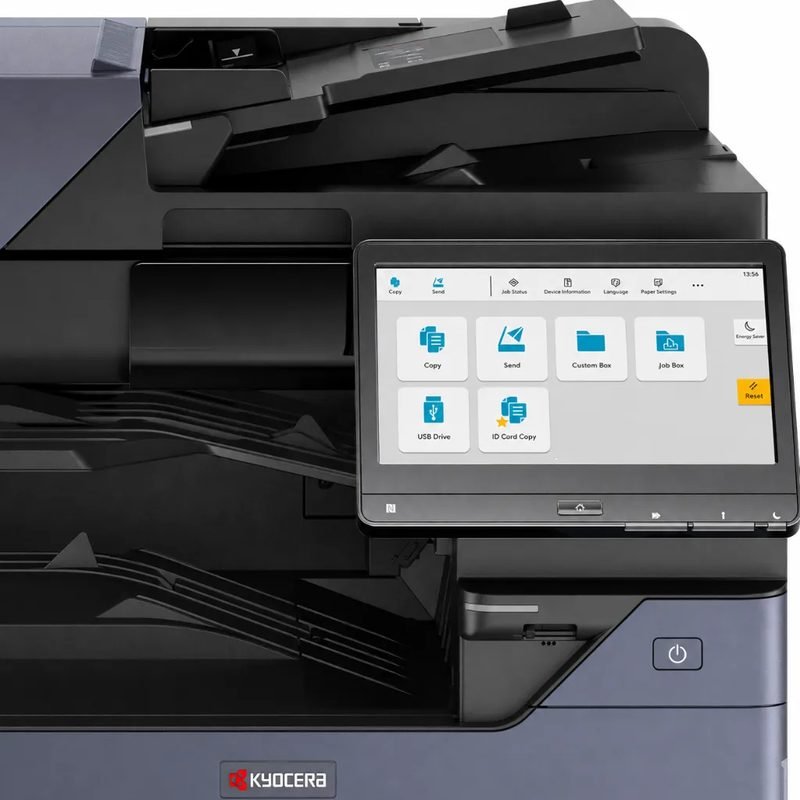
5. Assuming Every Device Was Set Up the Same Way
A printer added successfully on one laptop doesn't automatically mean every phone and tablet in the house can print to it — each device generally needs to be connected on its own, even if they're all using the same home network.
Setting up a printer at home from scratch? Our Home Printer Setup guide covers the full process step by step, including getting every device in the house printing.
Related reading:
This is general guidance only. Summit Edge is not affiliated with, endorsed by, or an authorized support provider for any printer manufacturer.