How to Scan a Document to Your Computer
Scanning confuses more people than printing — usually because there are five ways to do it and nobody says which to use. Here is the right one for each situation.
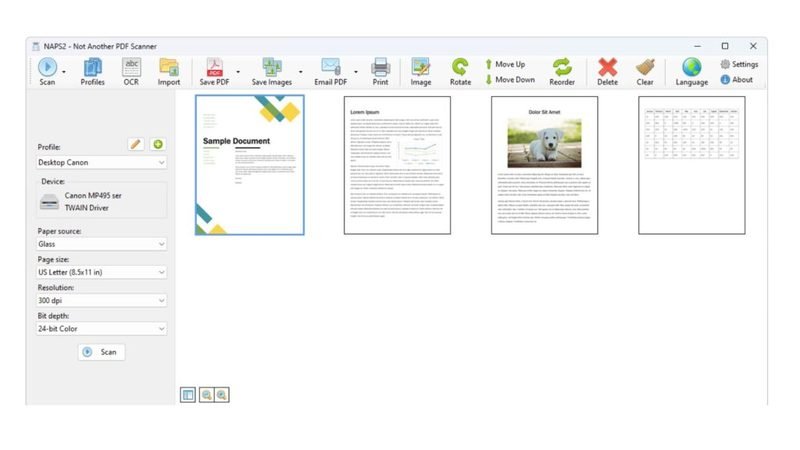
Method 1: The built-in Windows/Mac way (no install)
Windows: place the document on the glass or feeder, then open "Windows Fax and Scan" → New Scan → Preview → Scan. On Windows 11 you can also use Settings → Bluetooth & devices → Printers & scanners → your printer → Open scanner. Mac: Image Capture (in Applications) or the Printers & Scanners system dialog → Open Scanner.
Method 2: The brand app (best quality control)
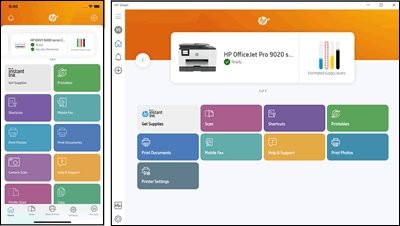
HP Smart, Canon IJ Scan Utility, Epson Scan 2/Smart Panel, and Brother iPrint&Scan all give you presets — "Document" for crisp text, "Photo" for images — and multi-page PDF merging. Download from the manufacturer support page. This is the method to learn if you scan weekly.
Photo vs document feeder: which to use
Flatbed glass: photos, IDs, fragile or stapled pages, anything that must not bend. Automatic document feeder (ADF): stacks of loose letter pages — a 30-page contract scans in one pass. Putting photos through an ADF can scratch them.
Settings that matter
Resolution: 300 DPI is right for documents; 600 DPI only for detailed photos. Color mode: "Color" scans even black text better than "Grayscale" — text edges come out cleaner. File format: PDF for multi-page documents, JPEG for photos, PNG if you will edit.
Make scans searchable (OCR)
A plain scan is a photo of text — you cannot search or copy it. Every brand app has an OCR or "Searchable PDF" checkbox; enable it. Windows and Mac can also OCR afterward, but checking the box at scan time is one click.
When scanning fails entirely
If the computer says "no scanner found," the problem is almost always the driver or the network — the offline fixes and our scanner troubleshooting guide cover both.
Keep Reading
This is general guidance only. Summit Edge is not affiliated with, endorsed by, or an authorized support provider for any printer manufacturer.