Why Is My Printer Offline? 6 Fixes That Actually Work
The "printer offline" message is the most common printer problem in Windows — and the least specific. Here are the six checks that fix it in order of how often they work.
What "offline" actually means
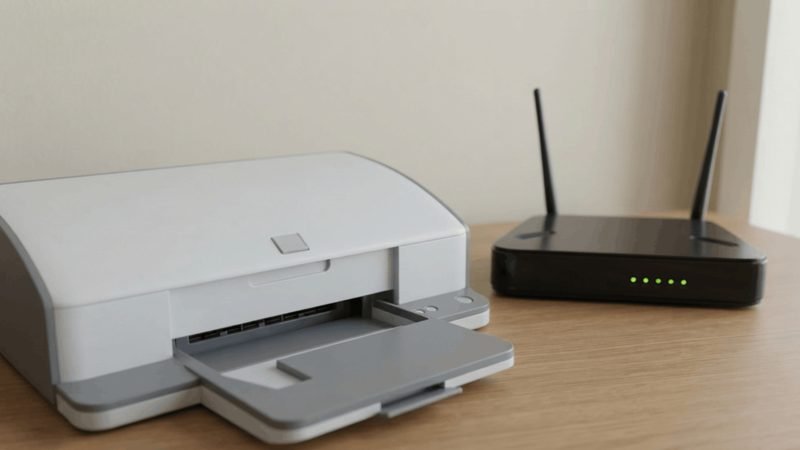
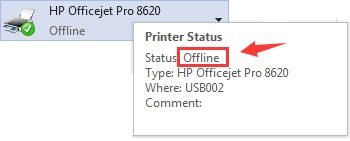
Windows labels a printer "offline" when it cannot confirm two-way communication. The printer may be fine — asleep, on the wrong wifi band, or stuck behind a stale queue. Work through these in order before touching any cables.
Check 1: Power, sleep mode, and the basics
Press the printer power button — many models "look on" while in deep sleep. If the control panel is dark, it is off, not offline. While you are there: any blinking error lights or a paper-jam message? Fix that first; printers often go "offline" in Windows while displaying an error on their own screen.
Check 2: The wifi band problem
Most home printers only support 2.4GHz wifi, while many routers push phones and laptops to 5GHz. The result: your computer and printer are on different networks that cannot see each other. Check the printer display or print a network report, confirm it shows a 2.4GHz connection, and if your router broadcasts separate names, join the printer to the 2.4GHz one. If it keeps dropping, see our guide to wifi printers that keep disconnecting.
Check 3: Set it as the default printer
On Windows: Settings → Bluetooth & devices → Printers & scanners → select your printer → "Set as default." Old default printers love to hijack print jobs. If an old printer appears here, remove it.
Check 4: Clear the print queue
A stuck job can put the whole printer offline. Open the printer queue (double-click the printer in Devices and Printers), cancel everything pending, then restart the Print Spooler: press Win+R, type services.msc, find "Print Spooler," right-click → Restart.
Check 5: Update or reinstall the driver
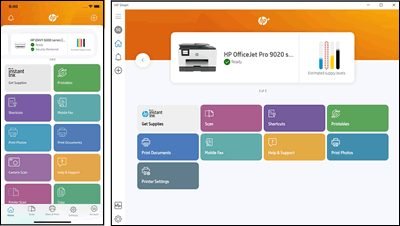
Corrupt drivers are the classic cause. Delete the printer from Windows, download the current driver from the manufacturer site (HP: 123.hp.com; Canon, Epson, Brother: their support pages), and reinstall. For HP printers, the HP Smart app does this automatically.
Check 6: Brand app status check
Open your manufacturer app — HP Smart, Canon PRINT, Brother iPrint&Scan, or Epson Smart Panel. It shows the printer real state: if the app sees the printer but Windows does not, the problem is Windows, not the printer.
When to stop troubleshooting
If the printer is old, drops offline daily, or needs spooler restarts weekly, the wireless card or formatter is failing. That is a repair — or a replacement. Book a diagnosis appointment, or browse printers in our store if it is time.
Keep Reading
This is general guidance only. Summit Edge is not affiliated with, endorsed by, or an authorized support provider for any printer manufacturer.