Printer Not Printing? 7 Things to Check First
"I clicked print and nothing happened" has a short list of usual suspects. These seven checks solve it about 90% of the time — in the order that wastes the least of yours.
Check 1: Is it actually on and awake?
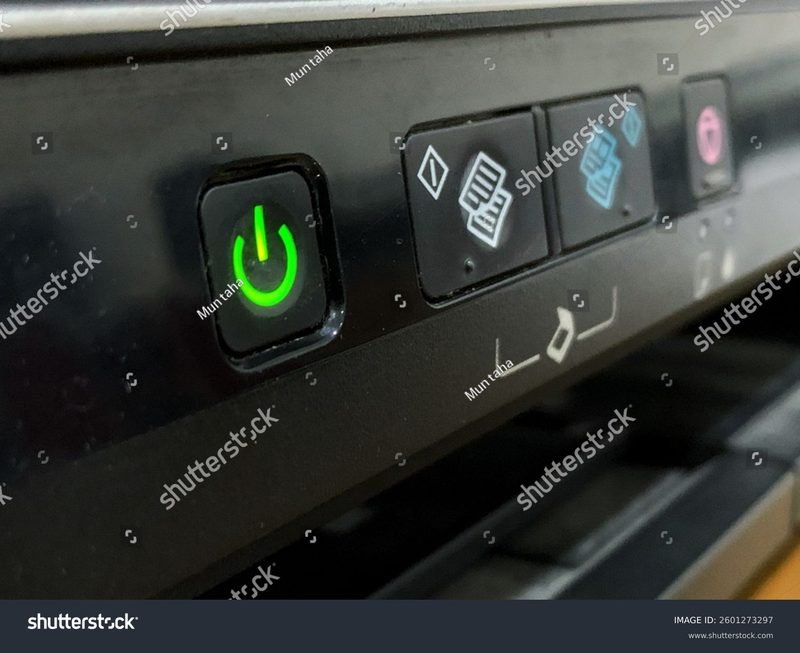
Press the power button and watch the panel wake up. Printers in deep sleep can appear "dead" to Windows. Also confirm it has paper and the output tray is not blocked — printers silently refuse to print with an obstructed tray.
Check 2: Read the printer own screen
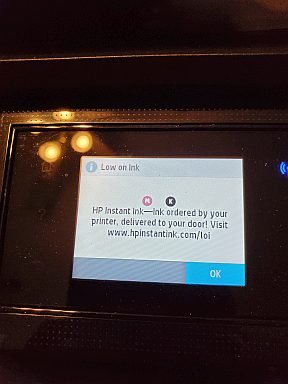
Before blaming the computer, look at the printer. Blinking ink lights, a "cartridge problem," an open door, or a jam icon tells you the printer is rejecting the job. Fix what it says first.
Check 3: Is it the default printer?
Windows sends jobs to the default printer silently. Settings → Printers & scanners → your printer → "Set as default." If a PDF printer or an old printer grabbed default status, your jobs went into the void.
Check 4: Look at the queue
Open the printer queue: is your document there, paused or "error"? Cancel it, restart the Print Spooler service (services.msc → Print Spooler → Restart), and try one simple test page — not your 40-page document.
Check 5: Is it offline?
If Windows says the printer is offline, that is a different problem with its own fixes — work through our printer offline guide before continuing here.
Check 6: Consumables and paper
Ink and toner at zero will block printing entirely — some HP models even block scanning on empty ink. Check levels in the printer menu or your brand app, and note that "low ink" warnings are estimates: if prints are fading, the cartridge may be empty despite what Windows says.
Check 7: Drivers and network, the last resort
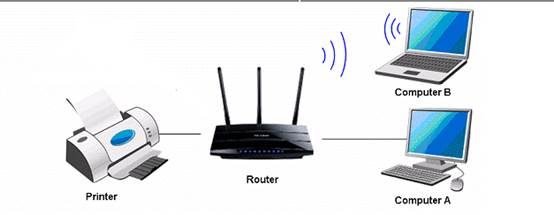
Delete the printer from Windows, reboot, and reinstall with the current driver from the manufacturer (HP via 123.hp.com, others via their support sites). If the printer is wireless, confirm it still shows connected to your wifi — the disconnection guide covers the flaky cases.
If none of it works
You have done the whole checklist — that is genuinely useful information for a technician. Book a printer problem appointment and tell us which checks failed; we start from there instead of zero. And if the printer is old enough that repairs cost more than it is worth, see what a new one costs before authorizing any work.
Keep Reading
This is general guidance only. Summit Edge is not affiliated with, endorsed by, or an authorized support provider for any printer manufacturer.