Print Job Stuck in Queue? Clear It in 2 Minutes
One stuck document can block every other print job — and canceling it from the queue often does nothing. The spooler restart is the fix that actually works.
Why jobs get stuck
Windows hands your document to the Print Spooler, which hands it to the printer. If the printer is offline, asleep, or errors mid-job, the spooler keeps the job "in progress" forever — and blocks everything behind it. Canceling from the queue asks nicely; the spooler restart ends the argument.
Step 1: Try the normal cancel
Open Settings → Bluetooth & devices → Printers & scanners → your printer → Open queue. Select the stuck job → Cancel. Sometimes this works; when it does not, continue.
Step 2: Restart the Print Spooler
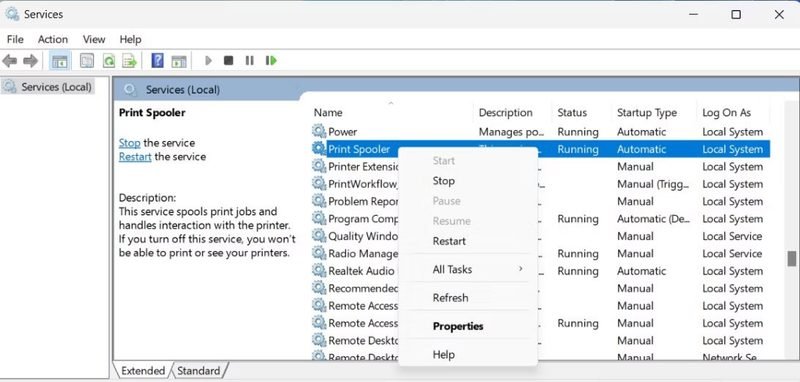
Press Win+R, type services.msc, Enter. Find "Print Spooler" in the list → right-click → Restart. The queue empties and the service reloads. This alone fixes most stuck jobs.
Step 3: The manual nuke (queue restart failed)
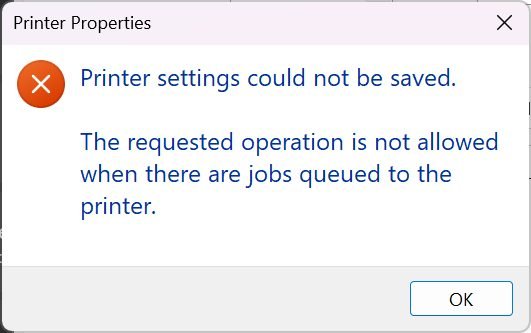
If the job survives a spooler restart, delete it by hand: stop the Print Spooler service (services.msc → right-click → Stop), then open C:\Windows\System32\spool\PRINTERS and delete every file inside (not the folder), then start the service again. Every pending job disappears — reprint what you actually need.
On a Mac
System Settings → Printers & Scanners → your printer → Open queue → hold Option and the "Resume" button becomes "Delete" — or remove and re-add the printer, which resets everything.
Stop it from recurring
Stuck queues usually trace back to an offline printer (see our offline fixes) or a driver fault. If you clear the queue weekly, reinstall the driver rather than living with it.
Keep Reading
This is general guidance only. Summit Edge is not affiliated with, endorsed by, or an authorized support provider for any printer manufacturer.